
Administration
Last updated: 25 Oct 2026
On this page
Plugins keep Beech next to the tools your studio already opens every morning. Instead of copying dates by hand, forwarding task updates into Slack, or uploading the same PDF into Vault that already lives in Drive, you connect the other product once and let Beech talk to it.
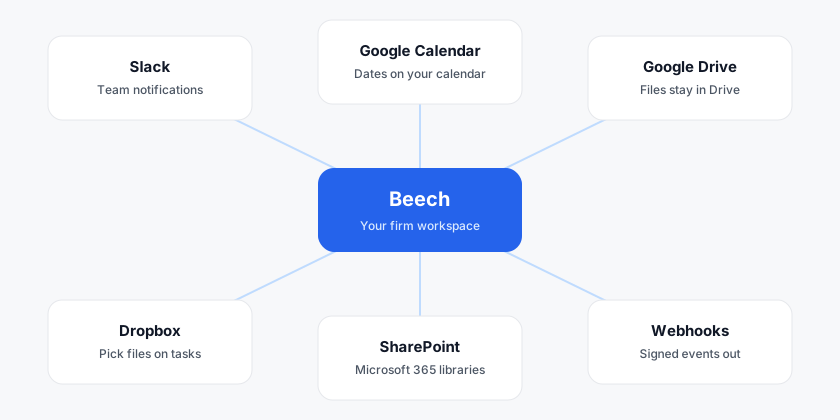
Think of Plugins as a small switchboard. Slack carries the noise of the day — assignments, approvals, vendor deliveries — into a channel the team already watches. Google Calendar puts Beech dates onto the calendar a person already uses, without creating a second Beech calendar. Drive, Dropbox, and SharePoint let someone attach a file that already exists, so Vault does not become a second filing cabinet. Webhooks are for firms that want those same events in a tool Beech does not ship.
Firm-wide notifications in the channels your team already reads.
Beech dates appear on the connected person’s existing calendar.
Attach Drive files to tasks without copying them into Vault.
Pick Dropbox files on a task; they stay in your Dropbox quota.
Link SharePoint or OneDrive for Business files from Microsoft 365.
Signed events for your own tools when Slack is not the destination.
Where to open Plugins
Plugins live on Firm settings, not on My profile. Open More → Firm settings, then choose Plugins in the Admin group. The URL is /settings?section=integrations — the product still uses that address even though the label you see is Plugins.
Only Admins can open this page. Managers can still use files that an Admin has connected, and they can see Billing and BeeBo usage, but they will not find Plugins in the sidebar. Contributors never see it. If you need Slack or Calendar turned on and the item is missing, ask an Admin — that is a permission boundary, not a broken page.
- 1Open Firm settings
From the More menu, choose Firm settings. You should see the firm sidebar, not the personal My profile screen.
- 2Choose Plugins
In the Admin group, open Plugins. You will see connected apps first, then the rest of the catalogue including coming-soon items.
- 3Open the app you want
Click the card for Slack, Google Calendar, Drive, Dropbox, or SharePoint. Each card has its own connect flow. Webhooks sit on the same page underneath the catalogue.
Slack
Architecture teams already live in Slack for site photos, consultant pings, and “where is that drawing?” questions. Beech Slack is not a second chat. It is a way for work that already happened in Beech — a task assigned, a drawing approved, a vendor delivering — to show up where people are looking, so nobody has to remember to check Beech for every status change.
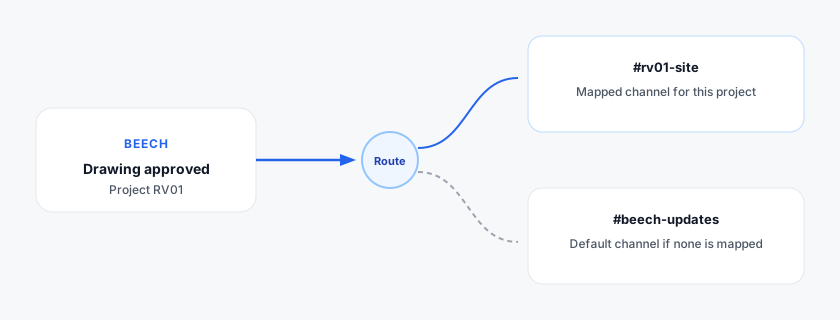
The connection is firm-wide. One Admin connects the firm’s Slack workspace. After that, Beech can post into a default channel, and you can send a project’s events to a different channel when that job has its own room.
- 1Connect the Slack workspace
On Plugins, open Slack and complete Slack’s permission screen with a workspace your firm actually uses. When it succeeds, you will see the workspace name and a Connected badge.
- 2Pick a default channel
Choose the channel that should receive events when a project does not have its own mapping. A quiet firm-wide channel such as #beech-updates is usually clearer than a busy #general.
- 3Choose which events to send
Turn on only the events the channel should see. You can start with assignments and approvals, then add vendor updates or chat mentions once the volume feels right.
- 4Map channels to projects when a job needs its own room
If RV01 already has #rv01-site, map that project to that channel so its approvals do not land in the default room.
How project channel mapping works
When something happens on a project, Beech looks up that project first. If you mapped a Slack channel to it, the message goes there. If you did not, Beech uses the default channel. That is why a default still matters: new projects and work without a mapping would otherwise have nowhere to post.
Which events Slack can receive
Each toggle is a kind of work, not a firehose of every click. Task assignments tell the channel when someone is given a task or a drawing, which is useful at the start of a sprint. Task status changes follow a task as it moves, for example from To Do to In Progress, so a coordinator can see motion without opening Workspace. Drawing approvals fire when a drawing is approved, which is the moment a sheet is safe to issue or to build on. Review requests tell reviewers that a drawing is waiting, which is often the bottleneck on a deadline. Vendor updates post when a vendor request is delivered, so the internal coordinator knows a consultant package has arrived. Chat mentions repeat an @mention from Beech chat into Slack, for people who live in Slack more than in Beech Messages.
Google Calendar
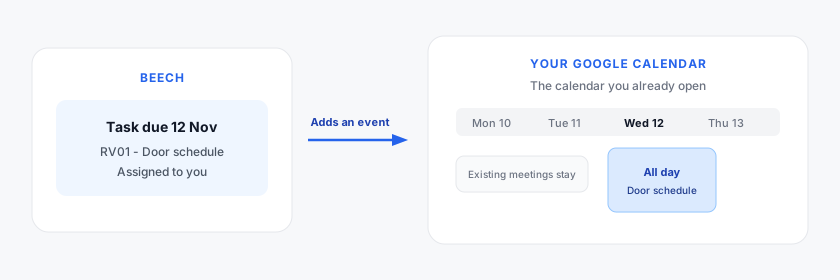
Beech already knows when a project should start, when a sprint ends, when your task is due, and when you are on leave. Google Calendar is how those dates reach the calendar you already check next to client meetings. Beech does not create a second Beech calendar. After you connect, it adds all-day events onto the primary calendar of the Google account that clicked Connect, and it only changes events it created itself. Your existing meetings stay untouched.
The connection is personal even though the Plugins page is Admin-only today. Dates are written to that one Google account. They are not pushed onto every teammate’s calendar. If another person needs Beech dates in Google, they need their own connection — and today an Admin has to open Plugins to do that for the account they sign in with.
- 1Open Google Calendar on Plugins
From Firm settings → Plugins, open the Google Calendar card. You should see Connect, not a firm-wide calendar name.
- 2Allow calendar access
Google will ask this Beech app to manage events on your calendar. That permission is how Beech adds, updates, and removes the events it created. It is not a request to wipe your week.
- 3Turn on the date types you want
After Connect, use the toggles. Leave a type off if you do not want that kind of date on Google. You can change this later without disconnecting.
- 4Check the calendar you already use
Open Google Calendar in the same account and look for all-day events on days that already have Beech dates. Updates in Beech refresh those events on the next sync.
What can appear on the calendar
Each toggle is a kind of date, and Beech only adds it when that date exists and applies to you. Project start and target finish mark when a project you belong to is planned to begin and to end, which is useful when several jobs overlap. Sprint dates put the start and end of a sprint you are part of on the calendar, so planning week is visible next to site visits. Task due dates are the day a task assigned to you is due; when you mark the task done, that event comes off the calendar. Drawing deadlines work the same way for a drawing assigned to you. Site visits appear when you recorded the visit or were marked as attending. Meetings come from meetings you wrote up in Beech, not from Google Meet invites created elsewhere. Follow-ups are action points from a site visit or meeting that are assigned to you and have a due date. Vendor dates are expected delivery and follow-up days on vendor work assigned to you. Leave covers your approved leave from the first day to the last. Holidays and office events are firm holidays, birthdays, and lunches that have a date. Personal reminders are reminders you set in Beech that have a due date. Enquiry start dates mark the expected start on an open enquiry you are on.
Disconnect removes Beech’s permission and stops new events. Use it when you change Google accounts or when you no longer want Beech dates on that calendar.
Google Drive, Dropbox, and SharePoint
Most studios already keep working files in Drive, Dropbox, or SharePoint. Vault is Beech’s own store for project documents you want under Beech permissions and deliverable links. These three plugins exist so you do not have to upload a copy into Vault just to point a task at a file that already lives in the other product. The file stays in Drive, Dropbox, or your Microsoft 365 tenant, on that product’s quota. Beech stores a link on the task.
An Admin connects the account or tenant once on Plugins. After that, people who work on tasks can pick files from the connected source when they attach work. Google Drive can also receive a scheduled firm export into a Beech Exports folder — that flow is documented on Data export, not here.
- 1Connect the source your firm already uses
On Plugins, open Google Drive, Dropbox, or SharePoint and sign in with the account that actually holds the files. Shared Drives and OneDrive for Business libraries are supported where the catalogue says so.
- 2Confirm the Connected badge
When the card shows Connected, picking is available on tasks. You do not need to reconnect for every project.
- 3Attach from a task, not from Plugins
Open the task (or drawing task) and use the attach control for Drive, Dropbox, or SharePoint. Choose the file in that product’s picker. Beech records the link; it does not copy the bytes into Vault.
Outgoing webhooks
Webhooks are for firms that already run their own tools — an internal dashboard, a Zapier or Make scenario, a script that files events. Beech sends a signed HTTP request when something you care about happens. Slack is the human-readable version of the same idea. Use webhooks when a machine, not a channel, should receive the event.
An Admin adds a URL and a signing secret on the Plugins page. Beech includes a signature so your receiver can tell the request came from your firm and was not invented by someone posting to the same URL. Keep the secret like a password. Rotate it if it leaks. Choose at least one event; sending nothing is not a useful webhook.
The events match the work you already know. A task being assigned or changing status, a drawing being approved, a review being requested or completed, a vendor request being delivered, a BeeBo status report being dispatched, and a chat mention can each notify your URL. Turn on only the events your receiver is written to handle, so a new event type does not surprise a fragile script.
Coming soon
Microsoft Teams and Outlook are listed on Plugins so you can see what is planned, but they are not connectable yet. Teams will post activity into a channel the way Slack does today. Outlook is meant for calendar and mail in Microsoft 365 firms. Until those cards leave coming soon, use Slack for notifications and Google Calendar for dates, or a webhook if your Microsoft stack already has an inbound URL.
Before you start
- You are an Admin. Managers and Contributors do not see Firm settings → Plugins.
- You can sign in to the Slack workspace, Google account, Dropbox, or Microsoft 365 tenant you want Beech to use.
Workflow checks and quality guardrails
Checklist item 1: Connect one plugin, confirm a real event arrived (a Slack message, a calendar date, or a linked file), then connect the next.
Checklist item 2: Map Slack channels to live projects so each job’s notifications stay with the people who work on that job.
Common mistakes to avoid
- Assuming Google Calendar is a shared firm calendar. The connection is personal: dates go onto the Google account that clicked Connect.
- Leaving Slack on the default channel for every project, so one busy channel buries the work that belongs to another job.
Troubleshooting
- 1Troubleshooting step 1
If Plugins is missing from the sidebar, you are not an Admin — ask an Admin to connect it, or to change your role.
- 2Troubleshooting step 2
If Google Calendar dates do not appear, confirm Connect succeeded, the date type is switched on, and you are looking at the same Google account that clicked Connect.
What to do next
- Open
/docs/settingsand continue with the next workflow. - Open
/docs/vaultand continue with the next workflow. - Open
/docs/teamand continue with the next workflow.
Related reading: Guides and Blog and feature workflows.